EarnLab Beginner Guide: Tasks, Rewards and Withdrawals
Learn how to navigate EarnLab, read offer milestones, track tasks, explore surveys and rewards, and review withdrawals with real video screenshots.
EarnLab's recorded tour shows the route from an account to Tasks, Surveys, Rewards and Wallet. Start by checking an offer's conditions, keep evidence of the task you choose, and review your withdrawal method before spending time on it.
This beginner walkthrough uses real screenshots from the supplied 10-minute recording and corroborating official help pages. Screenshots show that session: displayed amounts, deadlines, rewards and country options are examples, not promises of what your account will show today. The tour demonstrates navigation, not a completed offer or successful payout.
What EarnLab is and who it suits
EarnLab presents partner tasks and surveys alongside account rewards and optional on-site games. Its offer help explains that each offer has its own reward value and requirements. Your useful starting point is the individual offer, rather than a headline total.
It suits beginners who want to compare those requirements and are willing to keep track of their progress. It is a poor fit for someone who needs predictable income, guaranteed credit or a promised payout date: this recording provides none of those assurances. Someone uncomfortable with possible identity checks should also review the verification sources before registering.
Check eligibility first. EarnLab's public games page displays an 18-or-older sign-up statement; its terms also refer to age and jurisdiction restrictions and one account per household. These statements do not establish an allowed-country list for this guide.
1. Create your account and review settings
At the start of the recording, the sign-up form has username, email and password fields, a country selector and a terms checkbox. It also displays Google, Facebook and Steam sign-in buttons. Choose from the options actually available on your current screen, use accurate account details and read the linked terms before submitting.
The tour later opens account settings with Change Password and Two Factor Authentication controls. Look for those security settings once you are signed in. The recording does not demonstrate the full two-factor setup, so follow the current on-screen instructions rather than assuming a particular authentication app or recovery procedure.
The screenshots in this guide omit the form's personal values and account details. Your own screenshots for a support request should similarly avoid exposing passwords or unrelated private information.
2. Find your way around Home and Tasks
The left navigation in the recording includes Home, Tasks, My Tasks and Surveys, with Rewards, Affiliates, Blog, Guides and Live Support farther down. Use Home to orient yourself, Tasks to inspect an offer and My Tasks to review what has been started or tracked.
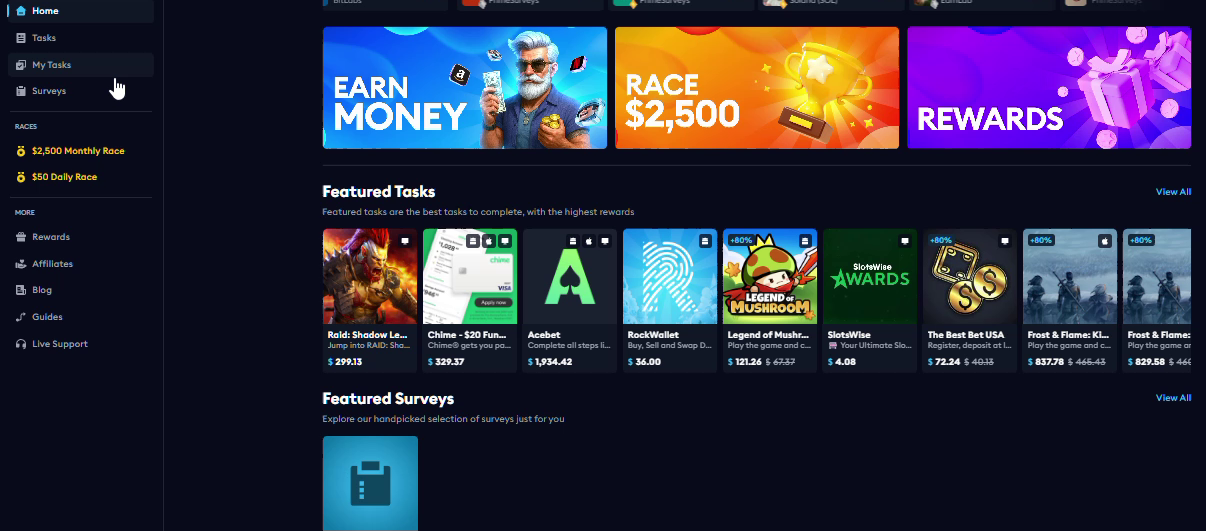
There are also race links. Seeing a race menu does not explain its eligibility, ranking rules or prize conditions, so open its current rules if you choose to investigate it. For a first task, the more useful work is checking the offer itself.
3. Read the offer before starting
The recording opens a Raid Shadow Legends example with separate Details and Rewards tabs. Its detail panel includes a Not Started status, new-player language, supported-device information and country fields. Treat it as a worked example of where to look; the video does not establish that this particular offer remains available.
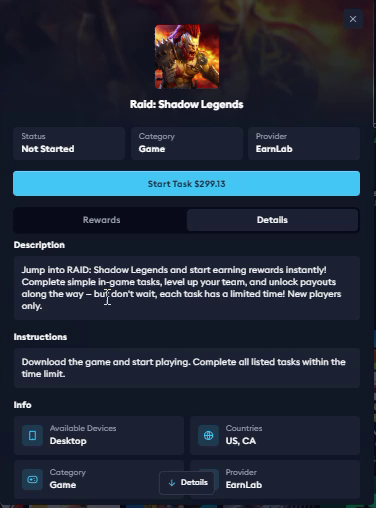
Before pressing the start button, check:
- Whether you qualify, including any new-player, country or device restriction.
- Exactly which action counts as completion.
- Whether an individual milestone has its own time limit.
- Whether purchases are required for any reward you are considering.
- The offer's credit timing and support instructions.
Separate progression from purchase milestones
The expanded reward list in the recording mixes game progression goals, time-limited actions and purchase goals. Read each row independently. A large total at the top does not tell you which rows you can meet or which involve spending.
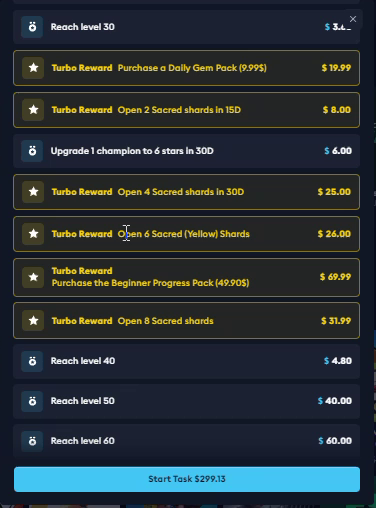
For your first offer, write a short checklist from its current rows: action, deadline, device, purchase requirement and proof you will retain. If a purchase row is optional for your plan, distinguish it from the progression rows you intend to attempt. This video supplies an example of the interface, not a strategy for finishing the game or evidence that spending will pay off.
4. Track progress in My Tasks
My Tasks is empty in the recording. That matters: browsing an offer and opening its Rewards tab do not demonstrate that the offer started, tracked, completed or credited.
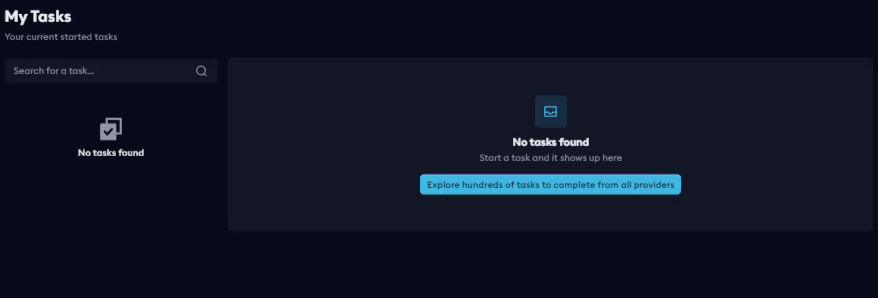
After starting an offer through its instructions, check the task status. The help page points to the Tasks section in your profile for completion status. Navigation labels may differ from the recorded sidebar; use the current task history available to your account.
Keep screenshots of the accepted offer and evidence of completed milestones. If credit is missing, those records are more useful than a screenshot of the advertised total alone.
5. Explore Surveys separately
The recorded Surveys page separates a Qualification tile from Survey Walls. The walls shown include several named survey providers, which helps you see that the page contains different entry points rather than one universal survey queue.
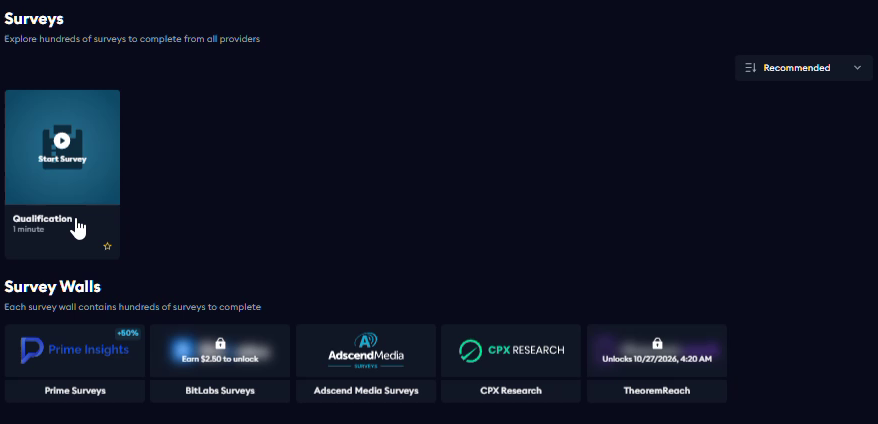
Read the current qualification and provider instructions before answering. The screenshot does not establish that you will qualify, that the same walls are available in your location or that a particular survey will reward you. Survey availability and acceptance were not tested in this tour.
6. Understand VIP, streak boxes and missions
The Rewards page shows VIP tiers and streak boxes. EarnLab's public Rewards page also lists these systems, while its official introductory guide says completed tasks and offers contribute XP toward VIP progression.
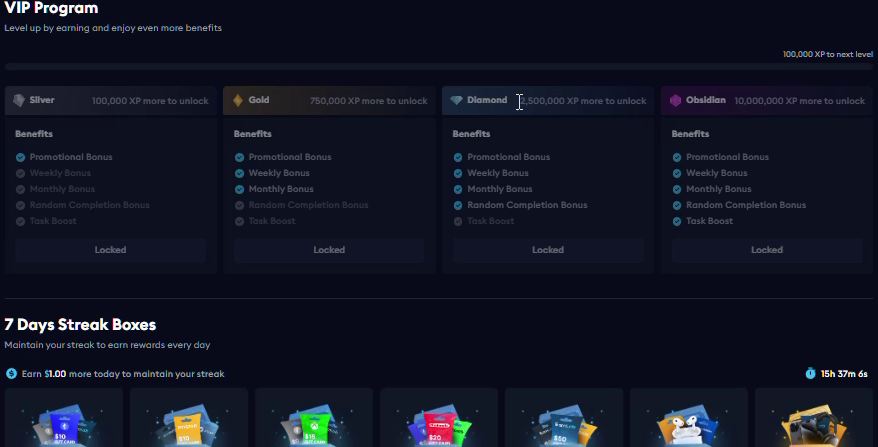
Read your current panel for the next tier and its benefits. The screenshot's thresholds are a recording snapshot. For streak boxes, check what maintains the streak and whether the displayed box is claimable; simply visiting the page is not evidence that its conditions have been met.
Missions are a separate panel with individual requirements, progress and locked milestone rewards. The tour shows requirements involving task completion and withdrawals.
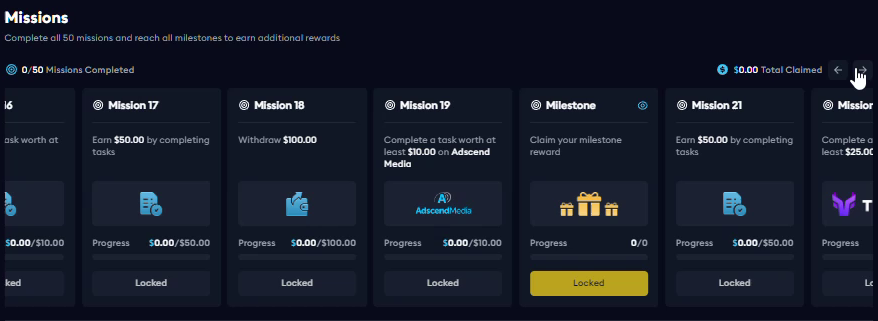
Open each mission's current conditions before counting on its reward. A progress counter or locked badge tells you where you stand in the panel; this recording does not prove a claim, the order in which missions must be completed or that the same requirements apply to every account.
7. Review Wallet and Withdraw
Wallet in the recording has Deposit, Withdraw and Redeem Code tabs. The Withdraw view has United States selected and shows cash, crypto, gift-card and skin categories. Use that screenshot to recognize the layout, then check the country and methods displayed for your own account.
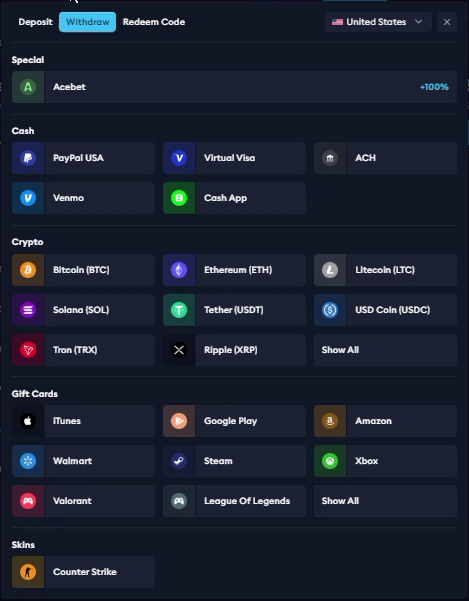
Before confirming a withdrawal, review the selected method, destination details, amount, minimum and any fee. EarnLab's fee help says the method's minimum and applicable payment-provider fees appear in the withdrawal modal. This is why the guide does not give one universal minimum.
The tour previews a Solana form with Chain, Wallet Address, Amount and Create Withdrawal fields. It does not submit a withdrawal or demonstrate receipt.
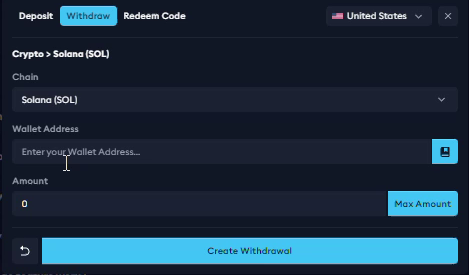
For a crypto method, confirm the chain and destination alongside the other fields. For other methods, check the requested payment details. EarnLab's withdrawal-change help advises reviewing the confirmation screen and says a completed request cannot be modified.
After submitting, its processing help directs you to the profile's Withdrawals section for status and mentions additional security verification. No single payout time is promised here.
Verification remains uncertain. Account-verification help describes a face scan and says ID is not required, while the terms reserve the ability to request age and identity evidence. Do not assume documentary checks can never happen.
8. Treat on-site games as optional spending
The tour also visits Boxes, Battles, Keno, Mines and Upgrader. Box listings show prices and risk labels. These screens are separate from the partner task walkthrough above.
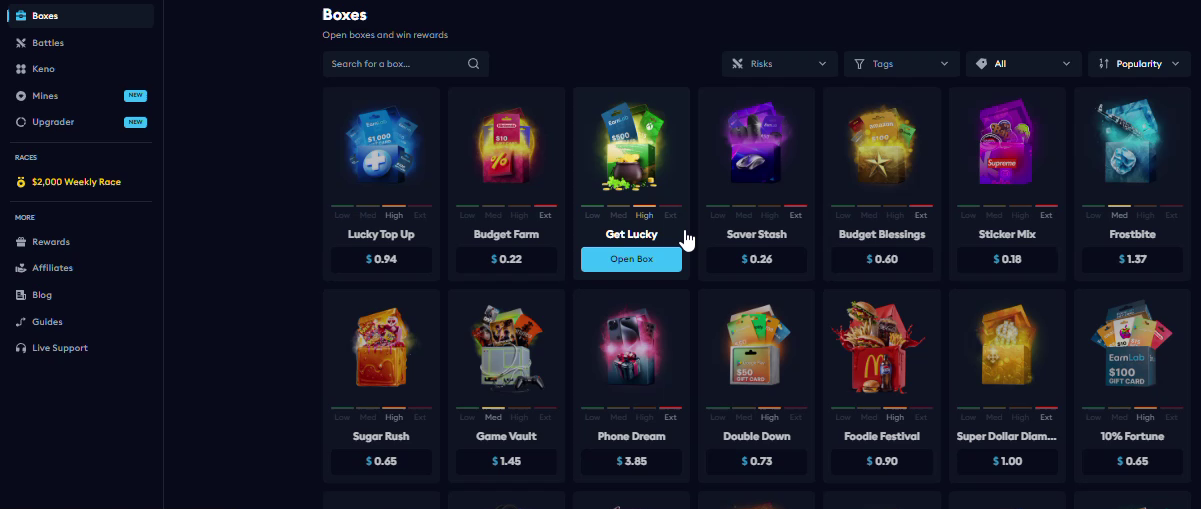
EarnLab's terms describe randomized case outcomes and credits used for platform games. Its fairness branding and verification form do not establish profit or guaranteed winnings. You can continue reading tasks, surveys and account information without treating a box opening as an earning plan.
Game-item cashability is also unresolved: promotional language and the terms do not provide a consistent basis for a blanket withdrawal claim. Review the current game and redemption rules before spending. This recording proves no successful withdrawal of a game reward.
9. Use guides and the correct support route
The tour briefly visits Affiliates, Blog and Guides. The affiliate screen has a code-creation entry point; it does not demonstrate referral income. Blog and Guides are places to look for first-party explanations, but check any advice against the requirements of your actual offer.
For help, the recording ends at a searchable help centre with separate Withdraw, Offers, Account and Bonuses & Promocodes categories.
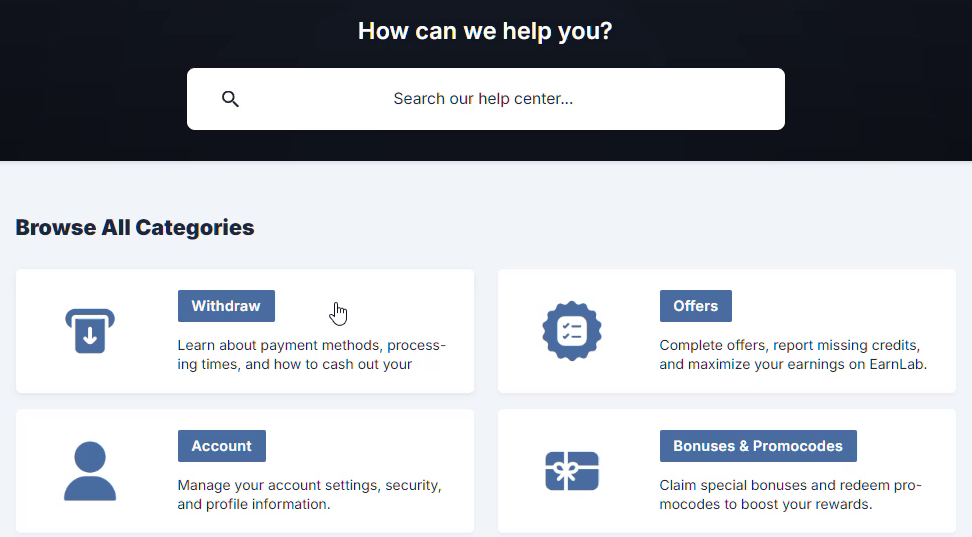
For missing offer credit, official support guidance distinguishes offerwall history's Missing Credits route from support on a started Offer Gallery task. It asks for completion proof and describes a waiting period before escalation. Read that guidance alongside the offer's credit timing and ticket deadline; a waiting instruction is not a guarantee that credit will arrive.
Useful strengths and limits
The clearest strength shown is access to offer details and separate milestone rows before starting. Task history, reward panels and help categories also give beginners places to check their progress and ask a focused question.
The limits are just as practical: country-specific withdrawal screens need careful interpretation, survey qualification is untested here, and official verification and game-item wording conflict. The tour is useful for learning the interface, but it cannot establish earning reliability or payout performance.
For additional platform context, see EarnGrind's EarnLab overview. Before your first task, save its conditions, check its required actions and decide which proof you will keep.
FAQ
What can I do on EarnLab?
The recording shows partner tasks, survey walls, VIP rewards, streak boxes, missions and optional on-site games. Availability and requirements should be checked in your current account.
What should I check before starting an offer?
Check eligibility, device and country restrictions, each milestone's action and deadline, purchase requirements, credit timing and support instructions. Save the offer conditions you accept.
Where can I check task progress?
The tour shows My Tasks, and official help points to Tasks in your profile for offer completion status. The recording's task list is empty and proves no completed credit.
Does the video show a successful withdrawal?
No. It shows withdrawal options and a form preview, but no submitted or received payout.
What is EarnLab's minimum withdrawal?
Official help says each payment method has its own minimum, displayed in the selected withdrawal modal. Check that modal for the current minimum and applicable fees.
Can EarnLab ask for identity verification?
Possible requirements are uncertain. Help describes a face scan and says ID is not required, while the terms reserve age and identity checks. Do not assume documentary verification can never be requested.
Are box games a reliable way to earn?
The terms describe randomized case outcomes. Prices and risk labels appear in the recording, but neither fairness branding nor the video proves profit or guaranteed winnings.
What should I do if an offer does not credit?
Keep proof of completion and read the offer's timing and support rules. Official help directs offerwall issues through Missing Credits in offerwall history and Offer Gallery issues through support on the started task.
Sources and recording notes
Screenshots are original-resolution crops from the supplied EarnLab recording. The recording date has not been independently verified. Official public evidence was captured on October 14, 2026.